YouTube Thumbnail Maker - Plan Your Text Before You Design

Most YouTube creators design their thumbnail first and add text as an afterthought.
They spend an hour in Canva getting the image right, then slap a word or two on top and hope it works.
The problem is that thumbnail text is not decoration – it is a click trigger.
And if you get it wrong, no amount of good design will save your click-through rate.
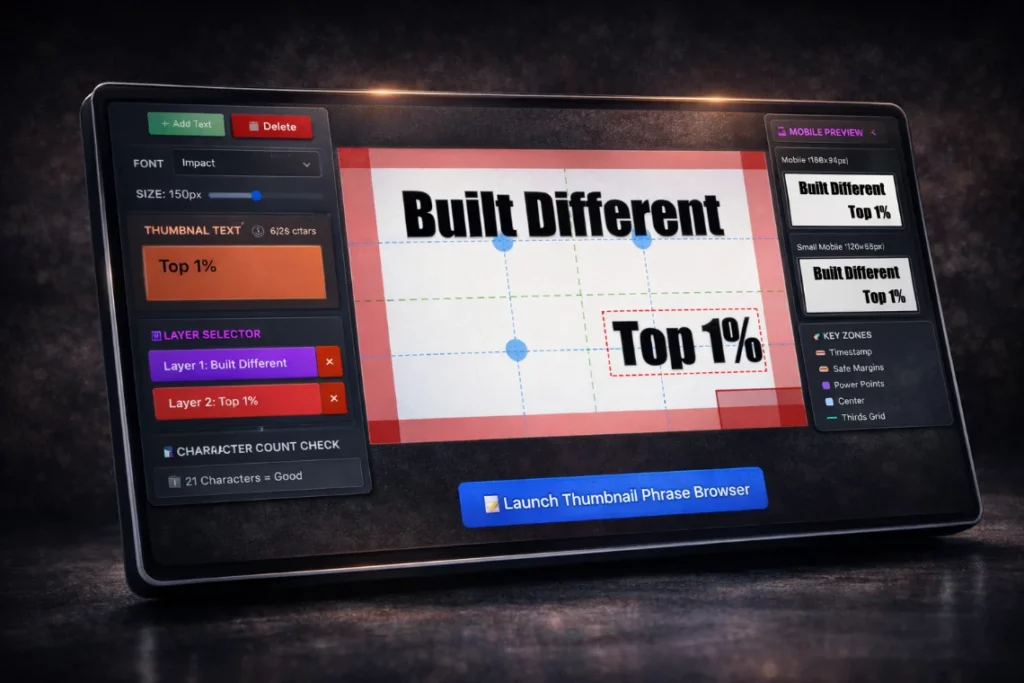
Rare Social’s YouTube Thumbnail Maker helps you get the words right before you open a design tool. Plan your text, test how it reads on a real mobile screen, and choose from over 1,500 proven phrases and power words – so when you do sit down to design, you already know exactly what your thumbnail needs to say.
Why Thumbnail Text Is the Part Most Creators Get Wrong
YouTube thumbnails have one job: make someone stop scrolling and click. The image gets attention. The text closes the deal. But most creators treat thumbnail text as a design element rather than a copywriting decision – choosing words based on how they look rather than what they communicate.
The result is thumbnails with vague, low-impact text that blends into the feed. “New Video” tells a viewer nothing. “Amazing Results” could apply to anything. Thumbnail text needs to create specific curiosity, trigger an emotion, or promise a clear outcome – in 20 characters or less, at a size that reads on a 120x68px mobile screen.
That is a precise copywriting challenge, and it is worth solving before you spend time on the design.
Ready to put this into practice?
Find what's going viral in your niche, write stronger titles, and create better thumbnails.
Get a Channel AuditHow the Rare Social Thumbnail Maker Works
The thumbnail maker gives you a canvas to plan and position your text before committing to a full design. Here is what you are working with:
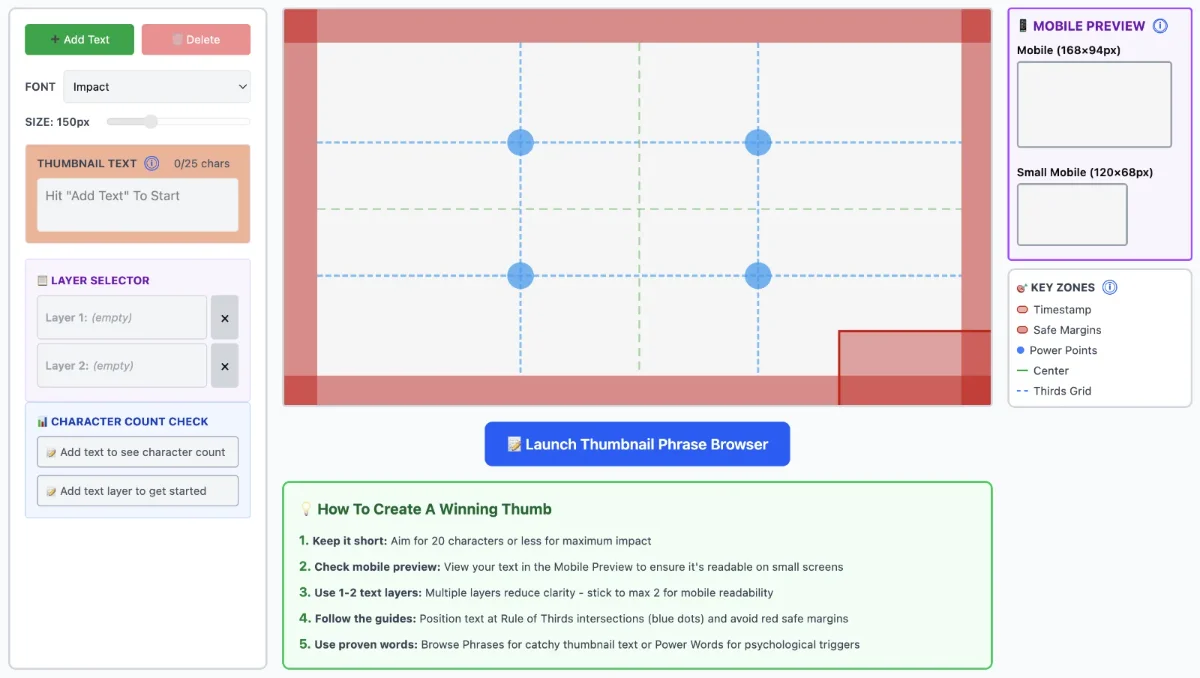
- A full-size thumbnail canvas with rule of thirds grid, safe margin guides, and power point indicators – the same compositional principles used by high-performing YouTube channels.
- Up to two text layers, which is the maximum recommended for mobile readability. More than two layers creates visual noise that disappears at small sizes.
- Font selection and size control so you can see how your chosen text actually renders at scale.
- A real-time mobile preview showing your thumbnail at 168x94px and 120x68px – the actual sizes YouTube displays on mobile devices. If your text is not readable here, it will not convert.
- A character count checker that flags when your text hits the 20-character sweet spot for maximum impact.
The workflow is straightforward. Decide what your thumbnail needs to say, position it correctly using the compositional guides, verify it reads on mobile, then take that into your design tool of choice to build the finished thumbnail around it.
The Thumbnail Phrase Browser – 1,500+ Proven Phrases
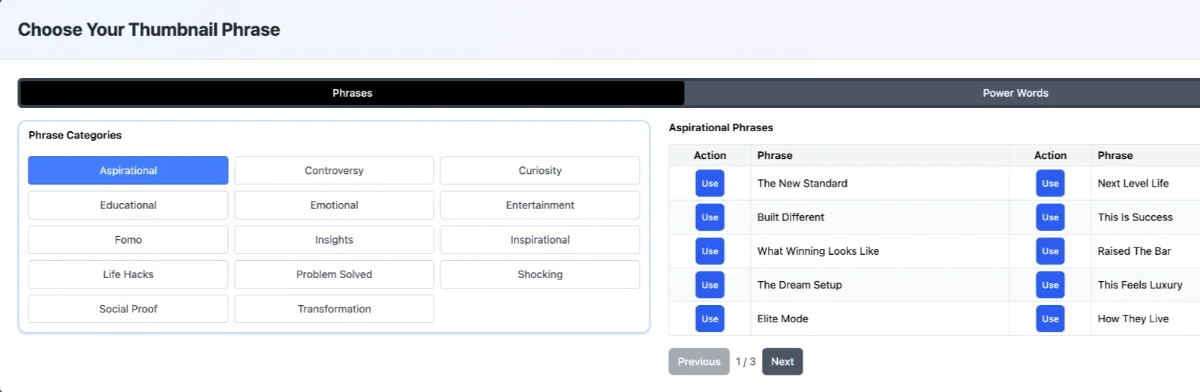
Knowing you need strong thumbnail text and knowing what to write are two different problems. The Thumbnail Phrase Browser solves the second one. It contains over 1,500 phrases and power words across 26 categories, organised by the psychological trigger each one activates.
Phrase categories cover the full range of content angles: Aspirational, Controversy, Curiosity, Educational, Emotional, Entertainment, FOMO, Insights, Inspirational, Life Hacks, Problem Solved, Shocking, Social Proof, and Transformation.
Power word categories cover the emotional levers that drive clicks: Challenge, Curiosity, Emotion, Exclusivity, Fear/Loss, Forbidden, Greed/Desire, Novelty, Power/Control, Simplicity, Social Proof, Trust/Authority, Urgency, and Value/Benefit.
Every phrase in the browser is built to work at thumbnail scale – short, specific, and emotionally loaded. Browse by category, find a phrase that fits your content angle, hit Use, and it drops straight into your canvas. No copywriting experience required.
Getting Thumbnail Text Right – the Five Rules
These are the principles the thumbnail maker is built around, drawn from the patterns seen in high click-through-rate thumbnails across the viral video database:
- Keep it under 20 characters. Shorter text is bolder text. Bold text converts at small sizes. Anything over 25 characters starts to lose impact on mobile.
- Use one primary text layer. A second layer can add supporting context but should always be smaller and secondary. Two competing text elements split attention and reduce impact.
- Position at rule of thirds intersections. The four points where the thirds grid lines cross are where the eye naturally lands first. Place your most important text here.
- Stay inside the safe margins. YouTube overlays the timestamp in the bottom right corner. Text that runs into this zone gets obscured. The red safe margin guides show you exactly where to avoid.
- Check mobile before you design. If your text is not legible at 120x68px it will not convert on mobile, which is where the majority of YouTube views happen. Test this before you commit to a design direction.
Who Is the Thumbnail Maker For?
Rare Social’s thumbnail maker is built for creators and small businesses who understand that thumbnails drive views – but who do not have a copywriting background or a dedicated design team to get the text right.
- Solo creators who design their own thumbnails and want to stop guessing what text to use.
- Small business owners using YouTube to attract customers who need thumbnails that communicate clearly without a graphic designer.
- Coaches and course creators whose thumbnails need to convey authority and curiosity at the same time.
- Marketing teams producing YouTube content at volume who need a repeatable process for thumbnail text decisions.
How This Fits Into the Rare Social Platform
The thumbnail maker is one part of a connected set of tools built around the same problem: helping creators make better decisions before they invest time in production.
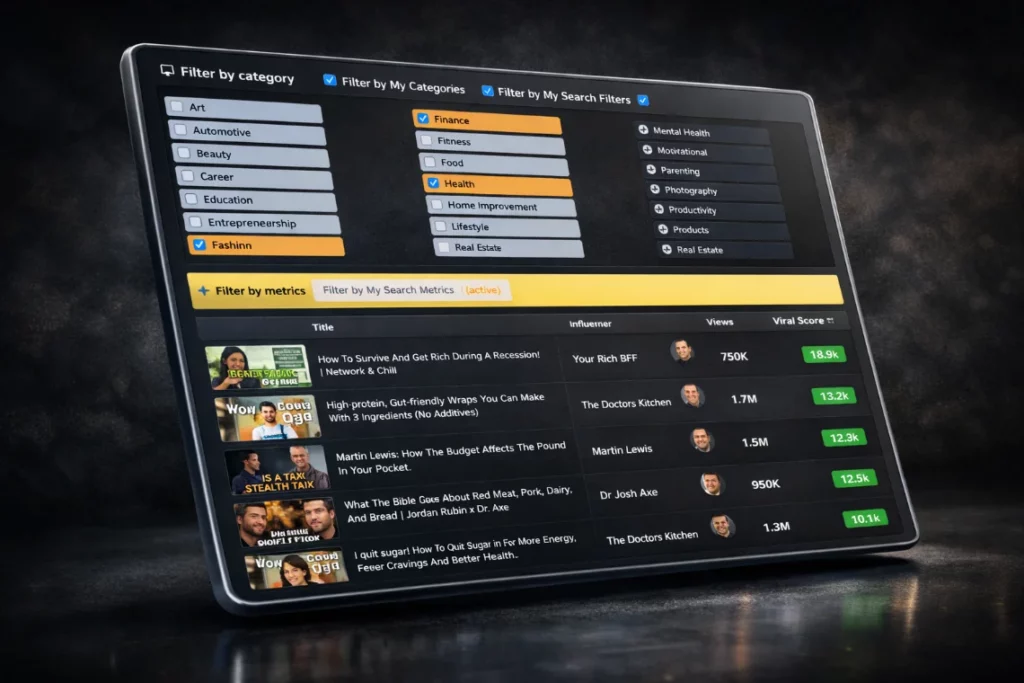
The viral video database shows you which video ideas are genuinely outperforming in your niche right now – so you start with a concept that has already proven it can get views.
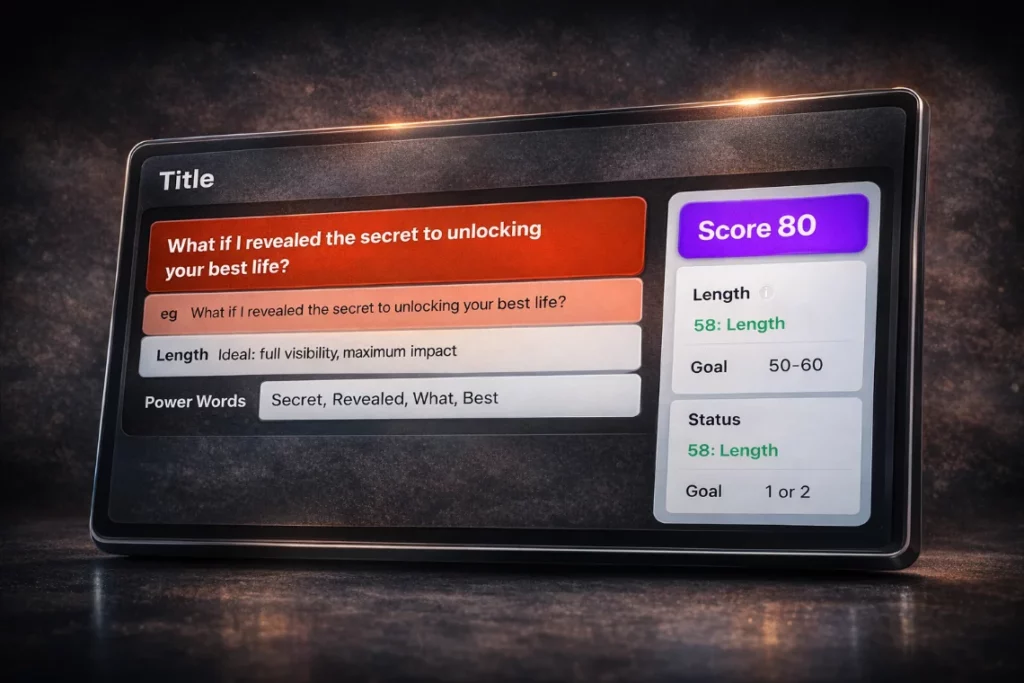
The YouTube Title Builder helps you write a title using patterns from the highest-performing videos in your category. And the thumbnail maker helps you plan the text that will drive the click before you open a design tool.
Together they cover the three decisions that determine whether a video performs before a single frame is filmed: the idea, the title, and the thumbnail.
See how it all connects with the YouTube Idea Generator and the YouTube Title Generator.
Frequently Asked Questions
Can I import my own background image into the thumbnail maker? Not currently – the thumbnail maker is focused on text planning and positioning rather than full thumbnail design. The idea is to get your text right first, then take that into your design tool of choice (Canva, Photoshop, etc.) to build the finished thumbnail around it. Background image import is on the roadmap for a future update.
Why is 20 characters the recommended limit for thumbnail text? At the sizes YouTube displays thumbnails on mobile – as small as 120x68px – longer text becomes unreadable. Short text can be set larger and bolder, which means it reads at a glance and stands out in a crowded feed. The character count checker in the thumbnail maker flags when you hit this threshold so you can make the call on whether to trim.
What is the difference between Phrases and Power Words in the browser? Phrases are complete thumbnail text suggestions ready to use or adapt – things like “Built Different” or “The New Standard”. Power Words are individual words designed to add emotional weight to text you are already writing – things like “Forbidden”, “Shocking”, or “Untold”. Most strong thumbnails combine both: a power word that creates tension, and a short phrase that delivers the promise.
Start Getting Your Thumbnails Right
Stop treating thumbnail text as a design decision. It is a copywriting decision – and it is worth making before you open Canva.
Try Rare Social free for 7 days. No credit card required.